In this article, you’ll learn how to add a team and invite members to your client portal.
1
Add a team
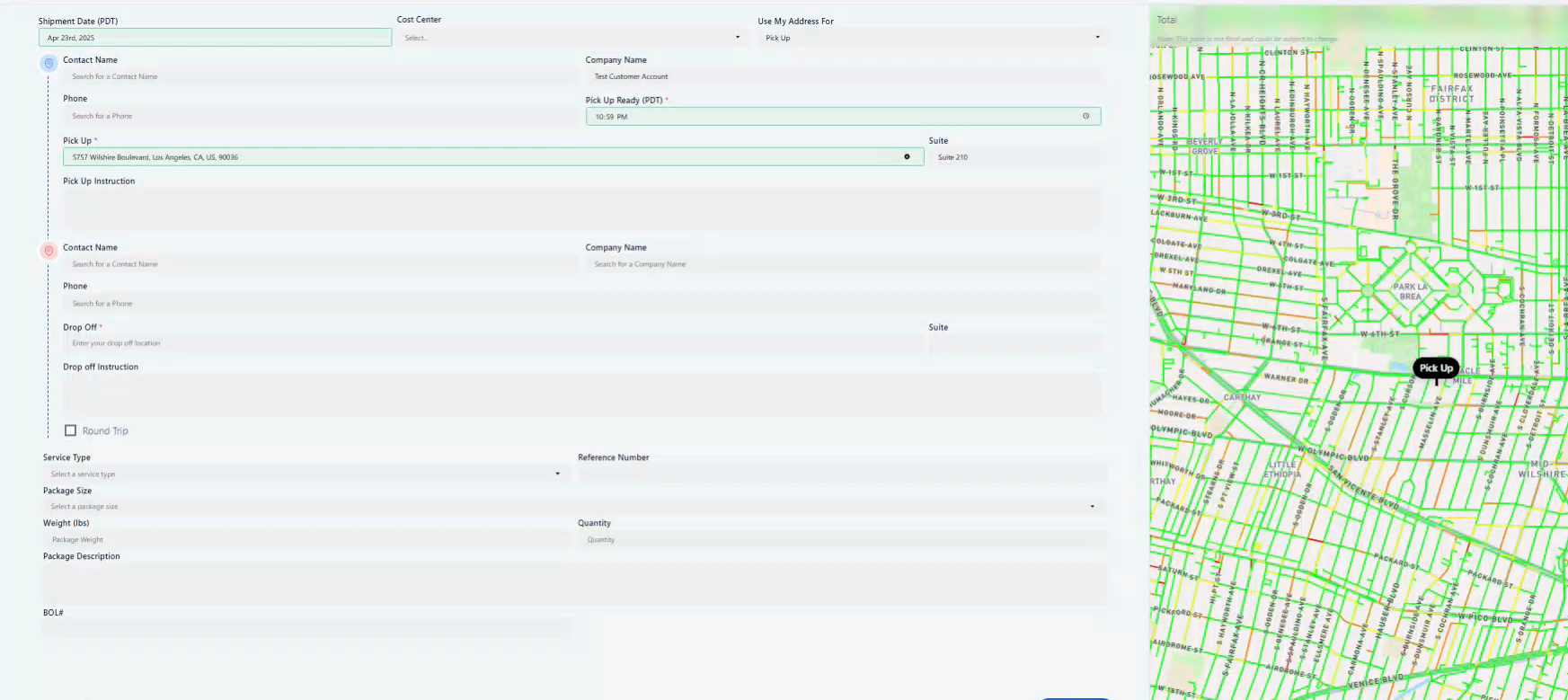
After signing up and logging into the client portal, start by adding a team.
2
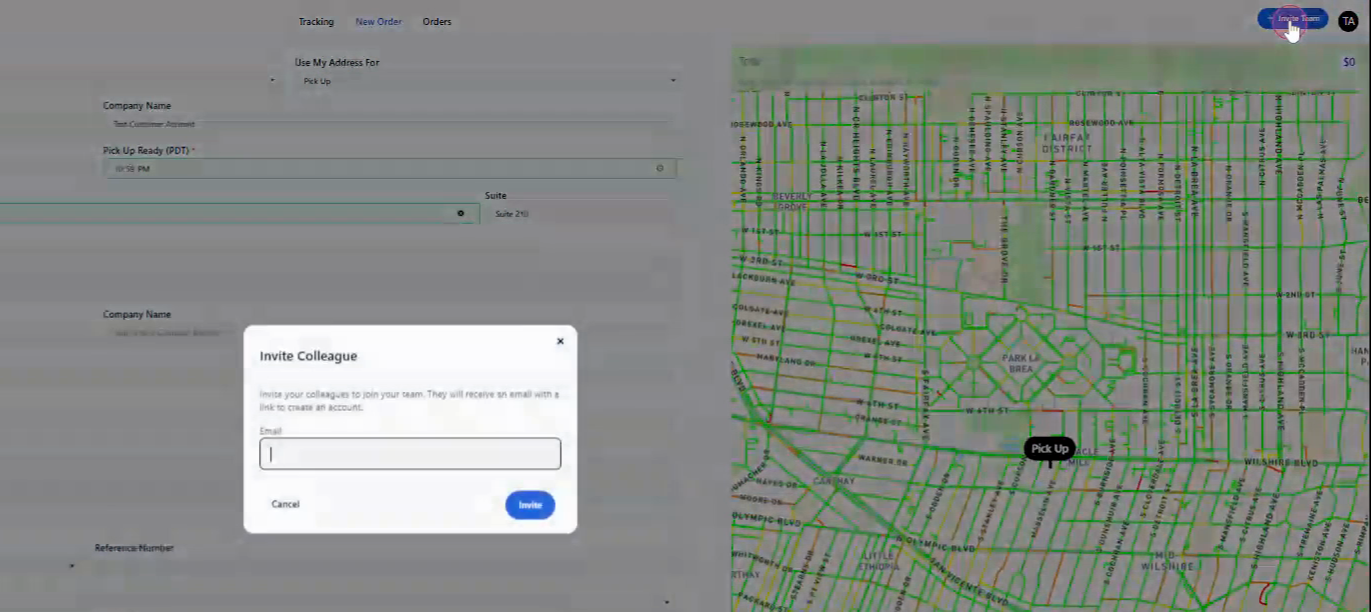
Click “Invite Team”
To invite a team member to use the portal, navigate to the top-right corner and click on the Invite Team button.
3
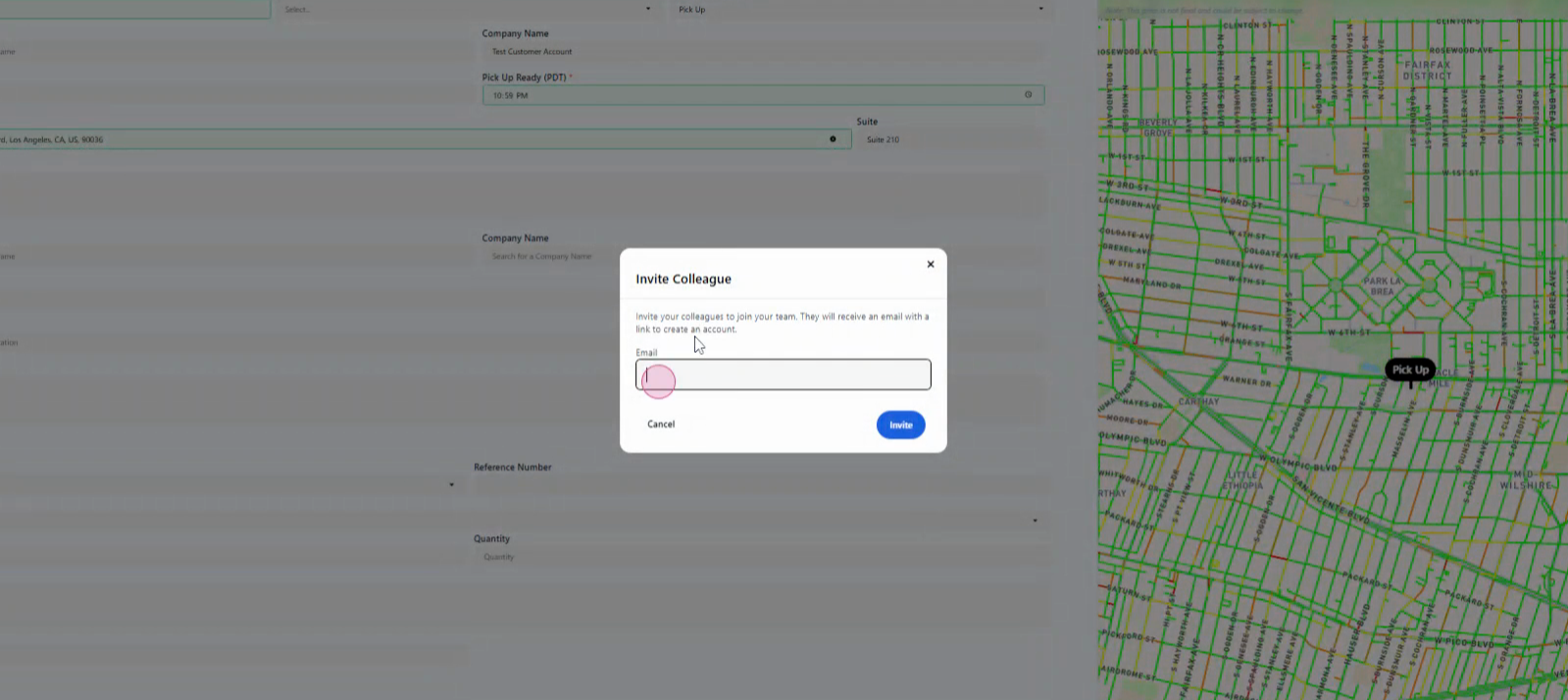
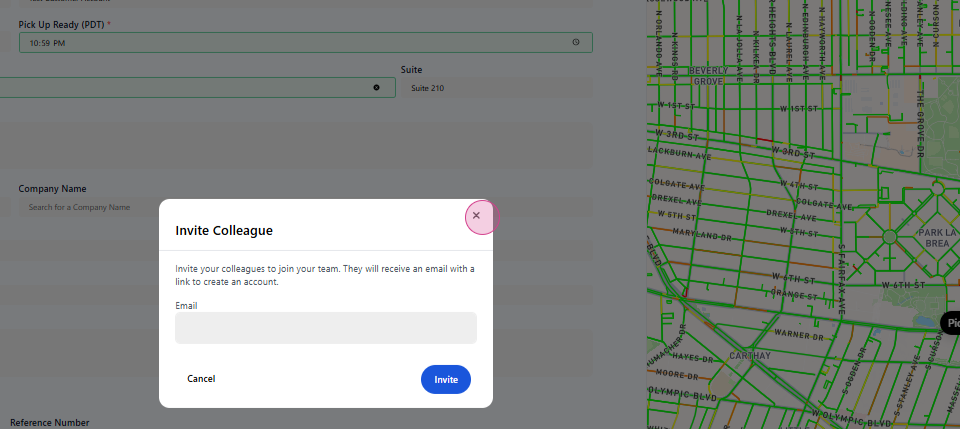
Enter their email
Enter the team member’s email address.
4
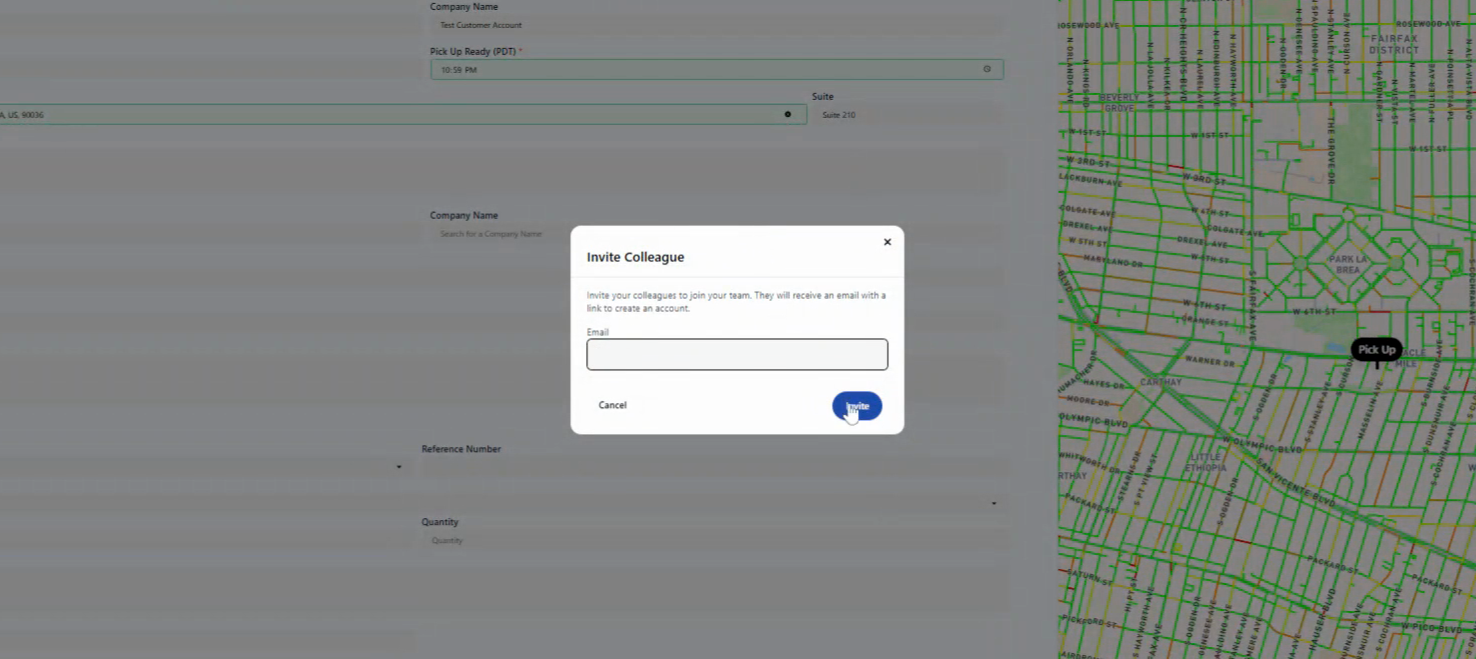
Send the invitation
Click on the Invite button to send them an invitation to the client portal.
5
What happens next
Once you’ve done this, they’ll receive an email with instructions on how to sign up and start using the portal. By inviting them through the client portal, they’ll gain access to all the orders — meaning any orders they place will be billed to the same company or group.
And that’s it! ✅
Your team is set up and ready to place and track orders on behalf of your business.